Quickstart#
Once you’re done setting up PyRep, RLBench, and Colosseum, you can
start interacting with the benchmark via various scripts we provide. Note that
you have to activate your virtual environment, and call setup_pyrep when
starting from a new terminal. Also, make sure you have setup Colosseum in
developer mode by using pip install -e . with the -e option.
1. Visualize and use variations#
We’ll start by showing how to visualize demonstrations for a task and how to enable and tweak variations using config files.
1.1 Visualizing a task#
Our first step will be to visualize one of the tasks from the benchmark. Let’s
say we what to visualize some demonstrations of the expert policy for the task
close_box. We can make use of the visualize_task script to do so, as
follows:
python -m colosseum.tools.visualize_task --config-name close_box
The script is also exposed as a console script in the setup.py file, so you
can also call it directly like this:
visualize_task --config-name close_box
CoppeliaSim should open up and start collecting some demonstrations from the
requested task.

Visualizing the task close_box.#
1.2 Enabling variations#
Associated with each task there are 4 files, which we explain below for the
task close_box:

The four types of files associated with every task in Colosseum#
close_box.ttm: This is theCoppeliaSimmodel representing the task itself. It contains all the objects and waypoints required for the task to be executed. Note that for RLBench tasks, this is one of the files provided as part of the task itself. You usually don’t have to change this file if you just want to use the task and take demonstrations from it.close_box.py: This is the other resource used by RLBench to represent a given task. It contains the wiring of objects, sensors, and conditiions for the task to be successfull.close_box.json: This file is related toColosseum, and we’ll discuss more about it when we start using the data collection scripts.close_box.yaml: This file is related toColosseum, and it’s used to configure variations for the associated task. We’ll show theenvsection of theyamlfile to discuss how we can enable and use these variations.
env:
  task_name: "close_box"
  seed: 42
  scene:
    factors:
      - variation: object_color
        name: manip_obj_color
        enabled: False
        targets: [box_base, box_lid]
        seed: ${env.seed}

      - variation: object_texture
        name: manip_obj_tex
        enabled: False
        targets: [box_base, box_lid]
        seed: ${env.seed}

      - variation: object_size
        name: manip_obj_size
        enabled: False
        targets: [box_base]
        scale_range: [0.75, 1.15]
        seed: ${env.seed}

      - variation: light_color
        enabled: False
        targets: [DefaultLightA, DefaultLightB, DefaultLightD]
        color_range: [[0.0, 0.0, 0.0], [0.5, 0.5, 0.5]]
        seed: ${env.seed}

      - variation: table_texture
        enabled: False
        seed: ${env.seed}

      - variation: table_color
        enabled: False
        color_range: [[0.25, 0.25, 0.25], [1.0, 1.0, 1.0]]
        seed: ${env.seed}

      - variation: background_texture
        enabled: False
        seed: ${env.seed}

      - variation: distractor_object
        enabled: False
        targets: [spawn_boundary0]
        num_objects: 2
        seed: ${env.seed}

      - variation: camera_pose
        enabled: False
        targets: [cam_front,
                 cam_over_shoulder_left,
                 cam_over_shoulder_right]
        euler_range: [[-0.05, -0.05, -0.05], [0.05, 0.05, 0.05]]
        position_range: [[-0.1, -0.1, -0.1], [0.1, 0.1, 0.1]]
        seed: ${env.seed}
Notice the list in yaml that we have, consisting of the various variations
that are defined for this task. Notice also that all are disabled, because of
enabled: False. Let’s activate one of these and vary its parameters; for that
we’ll choose the MO_Color corresponding to the following section in the yaml
file:
- variation: object_color
  name: manip_obj_color
  enabled: True
  targets: [box_base, box_lid]
  seed: ${env.seed}
We have enabled that variation, so if we visuaslize the task again we should see the effect of this variation in action, as shown in the figure below:
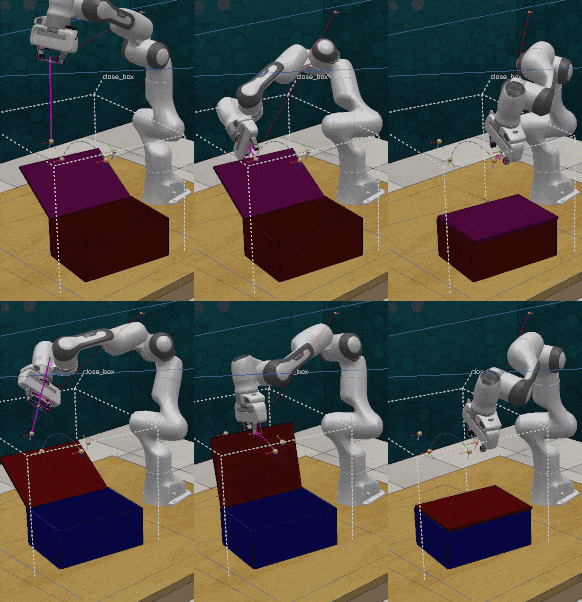
Visualizing the task close_box with the variation MO_Color enabled.#
For this variation we can notice that there are 5 arguments we have to provide
in the corresponding yaml file, as an element of a yaml list, which are:
variation: The type of variation to be used, in this caseobject_color.name: An optional argument to identify this variation from others.enabled: Whether or not the variation is enabled by default.targets: A list of shapes that this variation will handle. We have to check the.ttmfile using thetask_builderto look for the names of the objects we want our variations to handle.seed: The seed to be used for the random number generator.
Note
These arguments are not the only ones. Each variation has a different
set of arguments that allow to configure it according to our needs. We’ll see
more of these in the API Reference.
Let’s change the set of colors that we can sample from and select only red, green
and blue colors. For this, we can update that section of the yaml file to the
following. Also, let’s make sure that both objects handled by the variation are
the same color:
- variation: object_color
  name: manip_obj_color
  enabled: True
  targets: [box_base, box_lid]
  seed: ${env.seed}
  color_names: [red, green, blue]
  color_same: True
The resulting demonstrations are shown below. Notice that for the red case the motion planner failed at the task, and continued with another episode.

Visualizing the task close_box with the variation MO_Color enabled and
with some modifications.#
2. Collect demonstrations#
Colosseum comes with some scripts that will help us collect demonstrations from the tasks. We’ll start by using the simpler script.
2.1 Collecting demonstrations for current yaml config#
The collect_demo.py script can be used to collect demonstrations from a single
task according to the current configuration of its associated yaml file. Let’s
collect some demonstrations from the open_drawer task.
python -m colosseum.tools.collect_demo --config-name open_drawer
Similarly, we could use the console script collect_demo as follows:
collect_demo --config-name open_drawer
If everything went well, you should see the following output in your terminal:

Output of the collect_demo script.#
We should get also our demonstrations in the /tmp/rlbench_data folder.

Demonstrations collected for the task open_drawer.#
Note that we got 5 demonstrations for only the front rgb camera. These
settings come from the yaml file itself, from the data section of the
file, shown below:
data:
  # Where to save the demos
  save_path: /tmp/rlbench_data/
  # The size of the images to save
  image_size: [128, 128]
  # The renderer to use. Either opengl or opengl3. The first has no shadows
  renderer: opengl3
  # The number of episodes to collect per task
  episodes_per_task: 5
  # The image types that will be recorded
  images:
    rgb: True
    depth: False
    mask: False
    point_cloud: True
  # The cameras that we will be enabled
  cameras:
    left_shoulder: False
    right_shoulder: False
    overhead: False
    wrist: False
    front: True
  # Store depth as 0 - 1
  depth_in_meters: False
  # We want to save the masks as rgb encodings.
  masks_as_one_channel: False
To visually check that we are using indeed those settings (e.g. image size), we
can generate a video from the demonstration using ffmpeg. Navigate to the
folder for one demonstration (where all the image files are located) and run this
command to generate a video:
ffmpeg -framerate 30 -i %d.png -c:v libx264 -pix_fmt yuv420p video_open_drawer.mp4
The resulting video is shown below:
In the data section of the yaml file we can change various options like the
number of demonstrations to collect, from which cameras we should collect observations,
and which type of information can be collected. Let’s modify the image size to
[512, 512], collect 10 demonstrations instead of 5, and collect also from the
other available cameras. The resulting yaml should look something like this:
data:
  # Where to save the demos
  save_path: ${oc.env:HOME}/dataset/rlbench_data
  # The size of the images to save
  image_size: [512, 512]
  # The renderer to use. Either opengl or opengl3. The first has no shadows
  renderer: opengl3
  # The number of episodes to collect per task
  episodes_per_task: 10
  # The image types that will be recorded
  images:
    rgb: True
    depth: False
    mask: False
    point_cloud: True
  # The cameras that we will be enabled
  cameras:
    left_shoulder: True
    right_shoulder: True
    overhead: True
    wrist: True
    front: True
  # Store depth as 0 - 1
  depth_in_meters: False
  # We want to save the masks as rgb encodings.
  masks_as_one_channel: False
If everything went well, we should see the following output in our terminal:

Output of the collect_demo script after modifying the yaml file.#
Again, we can go to the folder of one of the demonstrations and generate a video
using ffmpeg, as follows:
ffmpeg -framerate 30 -i %d.png -c:v libx264 -pix_fmt yuv420p video_open_drawer.mp4
You can use this data collection script to collect very specific demonstrations. As you could notice, we haven’t activated variations yet when collecting demos.
2.2 Collecting demonstrations for all variations#
So far we have collected demonstrations from a single task, and we showed how to enable variations for that task via its associated config file. We could just use these mechanisms to start collecting demonstrations for all variations; the only problem is that it would be very tedious and time consuming to change the variation settings each time we want to collect demonstrations for different variations settings. We have partially automated that process by providing two scripts that you can use to collect demonstrations from all variations active one by one. First, we have to show you the Benchmark Spreadsheet where you will be able to see all tasks variations and which ones are not supported for the moment.

The Benchmark Spreadsheet.#
This spreadsheet is located at the root of the repo, and called colosseum_tasks_distribution.xlsx.
There you can find all the tasks available and their corresponding variations which,
as you can see by the colors, not always are supported for all tasks. The colors
mean the following:
Blank: The variation is supported without any issuesGray: The variation does not apply for that specific case (e.g. no Receiving Object)Red: The variation should be applicable, but it’s currently not supported.
Notice also that the variations factors are indexed by and idx number, which
uniquely identifies it among all variation factors. For example, note that the
MO_Color has index idx=2, whereas camera_pose has index idx=14. We
make use of these indices to activate and deactivate variations accordingly. So,
with this information we chose the option of using .json files for each task,
and in each one we enable or disable variations accordingly. Let’s take a look at
a section of the json file associated for the open_drawer task.
{
"strategy": [
    {
        "spreadsheet_idx": 0,
        "variation_name" : "no_variations",
        "enabled": true,
        "variations": [
            {"type": "object_color", "name": "manip_obj_color", "enabled": false},
            {"type": "object_color", "name": "recv_obj_color", "enabled": false},
            {"type": "object_texture", "name": "manip_obj_tex", "enabled": false},
            {"type": "object_texture", "name": "recv_obj_tex", "enabled": false},
            {"type": "object_size", "name": "manip_obj_size", "enabled": false},
            {"type": "object_size", "name": "recv_obj_size", "enabled": false},
            {"type": "light_color", "name": "any", "enabled": false},
            {"type": "table_color", "name": "any", "enabled": false},
            {"type": "table_texture", "name": "any", "enabled": false},
            {"type": "distractor_object", "name": "any", "enabled": false},
            {"type": "background_texture", "name": "any", "enabled": false},
            {"type": "camera_pose", "name": "any", "enabled": false},
            {"type": "object_friction", "name": "any", "enabled": false},
            {"type": "object_mass", "name": "any", "enabled": false}
        ]
    },
    {
        "spreadsheet_idx": 1,
        "variation_name" : "all_mixed",
        "enabled": true,
        "variations": [
            {"type": "object_color", "name": "manip_obj_color", "enabled": true},
            {"type": "object_color", "name": "recv_obj_color", "enabled": true},
            {"type": "object_texture", "name": "manip_obj_tex", "enabled": true},
            {"type": "object_texture", "name": "recv_obj_tex", "enabled": true},
            {"type": "object_size", "name": "manip_obj_size", "enabled": true},
            {"type": "object_size", "name": "recv_obj_size", "enabled": true},
            {"type": "light_color", "name": "any", "enabled": true},
            {"type": "table_color", "name": "any", "enabled": true},
            {"type": "table_texture", "name": "any", "enabled": true},
            {"type": "distractor_object", "name": "any", "enabled": true},
            {"type": "background_texture", "name": "any", "enabled": true},
            {"type": "camera_pose", "name": "any", "enabled": true},
            {"type": "object_friction", "name": "any", "enabled": true},
            {"type": "object_mass", "name": "any", "enabled": true}
        ]
    },
    {
        "spreadsheet_idx": 2,
        "variation_name" : "manip_obj_color",
        "enabled": true,
        "variations": [
            {"type": "object_color", "name": "manip_obj_color", "enabled": true},
            {"type": "object_color", "name": "recv_obj_color", "enabled": false},
            {"type": "object_texture", "name": "manip_obj_tex", "enabled": false},
            {"type": "object_texture", "name": "recv_obj_tex", "enabled": false},
            {"type": "object_size", "name": "manip_obj_size", "enabled": false},
            {"type": "object_size", "name": "recv_obj_size", "enabled": false},
            {"type": "light_color", "name": "any", "enabled": false},
            {"type": "table_color", "name": "any", "enabled": false},
            {"type": "table_texture", "name": "any", "enabled": false},
            {"type": "distractor_object", "name": "any", "enabled": false},
            {"type": "background_texture", "name": "any", "enabled": false},
            {"type": "camera_pose", "name": "any", "enabled": false},
            {"type": "object_friction", "name": "any", "enabled": false},
            {"type": "object_mass", "name": "any", "enabled": false}
        ]
    },
    {
        "spreadsheet_idx": 3,
        "variation_name" : "recv_obj_color",
        "enabled": true,
        "variations": [
            {"type": "object_color", "name": "manip_obj_color", "enabled": false},
            {"type": "object_color", "name": "recv_obj_color", "enabled": true},
            {"type": "object_texture", "name": "manip_obj_tex", "enabled": false},
            {"type": "object_texture", "name": "recv_obj_tex", "enabled": false},
            {"type": "object_size", "name": "manip_obj_size", "enabled": false},
            {"type": "object_size", "name": "recv_obj_size", "enabled": false},
            {"type": "light_color", "name": "any", "enabled": false},
            {"type": "table_color", "name": "any", "enabled": false},
            {"type": "table_texture", "name": "any", "enabled": false},
            {"type": "distractor_object", "name": "any", "enabled": false},
            {"type": "background_texture", "name": "any", "enabled": false},
            {"type": "camera_pose", "name": "any", "enabled": false},
            {"type": "object_friction", "name": "any", "enabled": false},
            {"type": "object_mass", "name": "any", "enabled": false}
        ]
    },
    {
        "spreadsheet_idx": 4,
        "variation_name" : "manip_obj_tex",
        "enabled": true,
        "variations": [
            {"type": "object_color", "name": "manip_obj_color", "enabled": false},
            {"type": "object_color", "name": "recv_obj_color", "enabled": false},
            {"type": "object_texture", "name": "manip_obj_tex", "enabled": true},
            {"type": "object_texture", "name": "recv_obj_tex", "enabled": false},
            {"type": "object_size", "name": "manip_obj_size", "enabled": false},
            {"type": "object_size", "name": "recv_obj_size", "enabled": false},
            {"type": "light_color", "name": "any", "enabled": false},
            {"type": "table_color", "name": "any", "enabled": false},
            {"type": "table_texture", "name": "any", "enabled": false},
            {"type": "distractor_object", "name": "any", "enabled": false},
            {"type": "background_texture", "name": "any", "enabled": false},
            {"type": "camera_pose", "name": "any", "enabled": false},
            {"type": "object_friction", "name": "any", "enabled": false},
            {"type": "object_mass", "name": "any", "enabled": false}
        ]
    },
Each group in this data collection config corresponds to a different idx, which
represents a specific variation, or could represent a specific set of conditions, like
idx=0, which corresponds to the no-variations case. For completeness we list
all currently available idx values:
Index |
Associated variation or configuration |
|---|---|
|
No variation factors are enabled |
|
All |
|
|
|
|
|
|
|
|
|
|
|
|
|
|
|
|
|
|
|
|
|
|
|
|
|
|
|
Both |
|
|
|
|
The script that makes use of this information is the modified dataset_generator.py
file, which you can locate at colosseum.tools.dataset_generator. This script
accepts a task as input and collect for that task all configured variations in its
corresponding json file. So for some tasks it will collect all 16 idxs,
whereas for others were some variations don’t apply or are not supported it will
collect a fewer number of variations. Note that the script will be in charge of
enabling and disabling variations according to the json file, so we don’t have
to do so manually in the yaml file. Below we show how to call this script for
the task open_drawer.
python -m colosseum.tools.dataset_generator --config-name open_drawer
Or using the console script:
dataset_generator --config-name open_drawer
This leads to the final script that we’ll discuss in this section, the collect_dataset.sh
script. It’s just a bash script that calls the previous script every time for all
tasks.
./collect_dataset.sh
This script has some properties exposed, which we show below:
# idx from which to collect demos (use -1 for all idxs)
IDX_TO_COLLECT=-1

SAVE_PATH=$HOME/data/colosseum_dataset
NUMBER_OF_EPISODES=1
IMAGE_SIZE=(128 128)
MAX_ATTEMPTS=20
SEED=42
USE_SAVE_STATES="True"

IMAGES_USE_RGB="True"
IMAGES_USE_DEPTH="True"
IMAGES_USE_MASK="False"
IMAGES_USE_POINTCLOUD="False"

CAMERAS_USE_LEFT_SHOULDER="True"
CAMERAS_USE_RIGHT_SHOULDER="True"
CAMERAS_USE_OVERHEAD="False"
CAMERAS_USE_WRIST="True"
CAMERAS_USE_FRONT="True"